
Key Features
|
Feature |
Description |
|
One-Time Upload |
Upload multiple files from Dropbox to WickedFile at once. |
|
Recurring Sync |
Automatically sync files from selected Dropbox folders on an ongoing basis. |
|
Supported File Types |
PDFs, JPEGs, PNGs, BMPs, and TIFFs. |
|
Shop Location Assignment |
Assign uploaded or synced files to a shop location for easier tracking. |
|
Subfolder Inclusion |
When setting up recurring sync, choose whether or not to include subfolders. |
How to Access the Integration
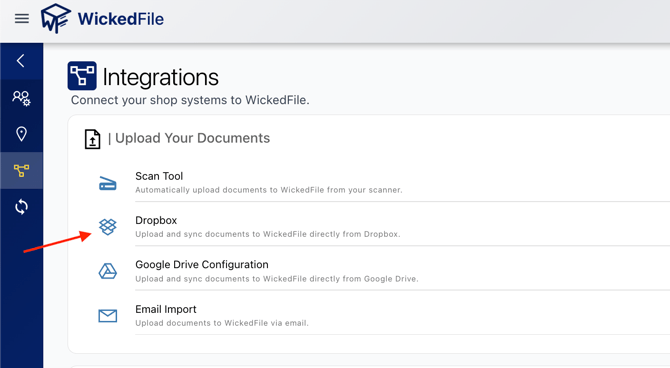
- Navigate to the Custom Reports tab in WickedFile.
- Select Dropbox Integration from the available options.
- Sign in to Dropbox (if prompted) to authorize the connection.
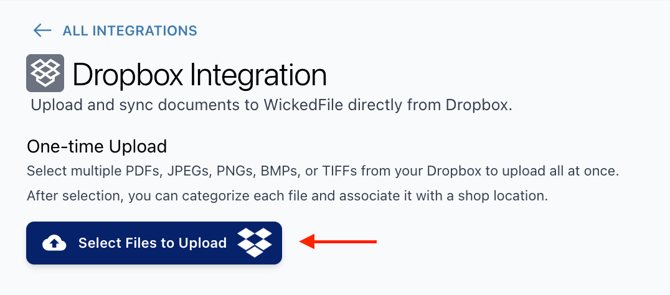
One-Time File Upload
Use this option to upload a batch of files manually from Dropbox.
Steps:
- Click Select Files to Upload.
- Choose the files you want to import (PDF, JPEG, PNG, BMP, or TIFF).
- Assign each file to a shop location and categorize if necessary.
- Save to complete the upload.
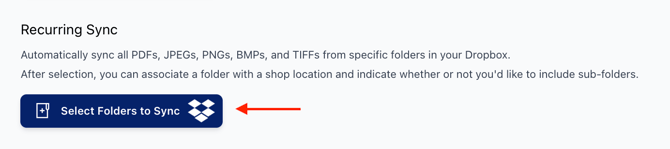
Recurring Sync (Automated File Syncing)
Use Recurring Sync to automatically upload documents from a Dropbox folder into WickedFile.
Steps:
- Click Select Folders to Sync.
- Choose a Dropbox folder you want to connect.
- Select whether to include subfolders.
- Assign a shop location to the folder.
- Save your configuration.
WickedFile will automatically import new files from the connected folder going forward.
Best Practices
To ensure accurate and efficient file uploads, follow these recommendations:
- Assign a dedicated Dropbox folder for each shop location or document type.
- Use Recurring Sync for frequently uploaded items such as vendor invoices, receipts, repair orders, or statements.
- Avoid renaming or moving synced folders in Dropbox to prevent interruptions.
- Regularly review imported documents to confirm they are categorized correctly.
- For detailed guidelines on preparing and uploading documents, refer to:
[Insert link to Uploading Best Practices here]
Security & Compliance
- The integration uses the Dropbox API to securely transfer files.
- WickedFile is not endorsed or certified by Dropbox. Use of this integration is subject to the Dropbox API Terms of Service and Dropbox Trademark Guidelines.
- Authentication is handled securely through Dropbox; WickedFile does not store Dropbox login credentials.
Troubleshooting
|
Issue |
Solution |
|
Files not appearing in WickedFile |
Ensure supported file types are used and that the correct folder is synced. |
|
Sync has stopped working |
Reauthorize Dropbox within the integration settings. |
|
Files sent to wrong shop/location |
Update the location manually or adjust the folder settings in the integration. |