
If you’ve downloaded the WickedFile Scan Client but it isn’t opening, follow the steps below to resolve the issue.
1. Open the Windows Task Manager. (If you need help opening the Windows Task Manager, see the options below)
1. Open the Windows Task Manager. (If you need help opening the Windows Task Manager, see the options below)
- You can open the Windows Task Manager quickly with Ctrl + Shift + Esc
- You also can right-click on the taskbar and select task manager from the context menu
2. Once you have the Task Manager open, it should look like the photo below:
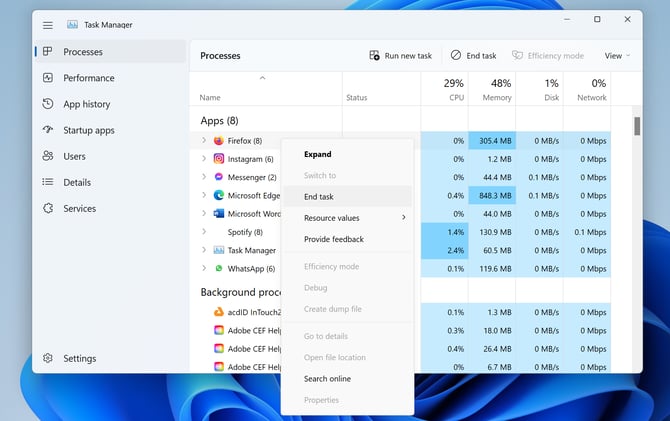
3. The Windows Task Manager will show you a list of all the programs and apps running on your computer. Please look for the WickedFile scan client on this list.
4. Once you have located the WickedFile scan client, right click and click on "End Task"
5. Now go back to your desktop screen and try to re-open the WickedFile scan client application you installed. This should fix the issue.
If the following steps above do not resolve the issue, please try restarting your computer and re-opening the scan client.