Custom Codes and Workflow Statuses exist to support process clarity, not personalization for its own sake. They allow each organization to reflect how money actually moves through their operation while keeping the AP Hub consistent and easy to work day-to-day.
Codes answer the question “Where did the money go?”
Workflow statuses answer “Where am I in my process?”
They serve different purposes and should be used intentionally.
What Codes Represent
Codes are the final state of an invoice. Applying a code means the invoice has been reviewed and the spend is understood.
Every invoice in the AP Hub is automatically coded by WickedFile using AI. The user’s job is to focus on exceptions and confirm or correct where needed.
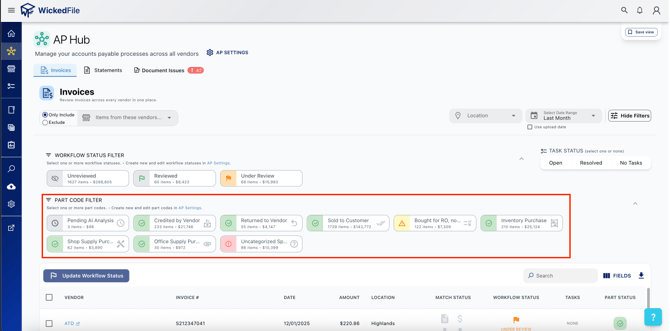
Default system codes fall into three color categories:
-
Green ✅ – Accounted for
-
Yellow ⚠️ – Bought for RO not Sold (Exception)
-
Red ❗️– Uncategorized Spend (Exception)
If even one part on an invoice is an exception, the entire invoice inherits that higher-risk color.
Default Codes (System-Controlled)
Some codes are foundational to WickedFile’s logic and cannot be deleted. These include:
-
Sold to Customer ✅
-
Credited by Vendor ✅
-
Inventory Purchase ✅
-
Shop Supply Purchase ✅
-
Office Supply Purchase ✅
-
Bought for RO Not Sold ⚠️
-
Uncategorized Spend ❗️
-
Pending AI Analysis ⏸️
The names of these codes can be edited, but their underlying logic remains intact to preserve reconciliation accuracy and reporting consistency.
Creating Custom Codes
Custom codes allow teams to reflect internal distinctions to better suit the AP workflow for their own shop's processes.
Examples of use cases:
-
Internal employee purchases
-
Counter sales
To create a custom code:
-
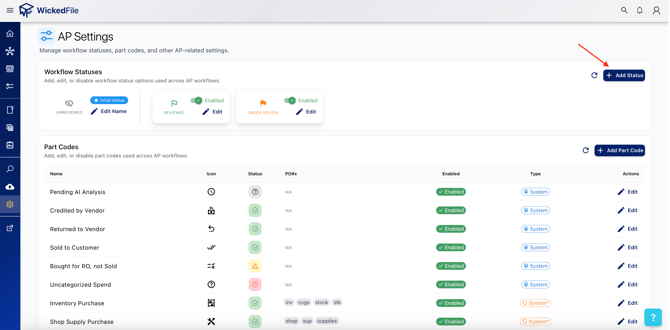
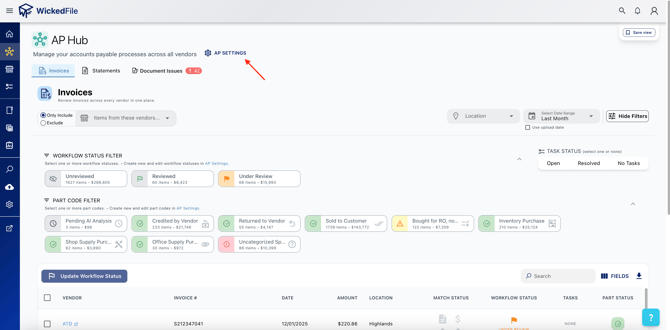
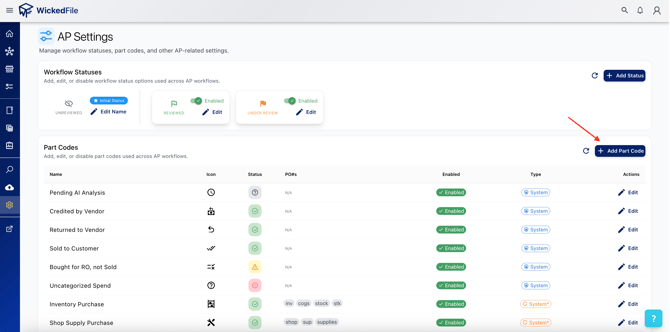
Navigate to System Settings → AP Settings
-
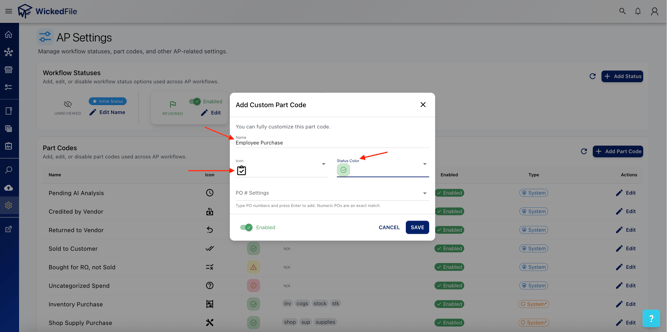
Select Add Code
-
Assign:
-
A name
-
A color (red, yellow, or green)
-
Optional icon
-
-
Save the code
Once created, the code becomes available across the AP Hub and statements.
Color Selection Matters
Colors are not cosmetic. They control prioritization.
-
Red/Yellow should be reserved for exceptions
-
Green should only be used when the money is accounted for
PO Number Configuration for Codes
Inventory, Shop Supplies, and Office Supplies rely on PO number logic to auto-classify invoices.
If your shop uses non-standard PO numbers:
-
Inventory (e.g. “INV”, “STOCK”)
-
Shop supplies (e.g. “SHOP”)
WickedFile will recognize these characters within the PO Number field of uploaded invoices and code them automatically. You can add additional PO number triggers to these specific codes or any custom created code in AP Settings. This reduces false exceptions and keeps the AP Hub clean.
Workflow Statuses
Workflow statuses are process navigation aids within the AP Hub.
They exist to help users:
-
Keep their place in case they get pulled away
-
Coordinate work across team members
-
Signal readiness without changing financial logic
Workflow statuses do not affect reconciliation, coding, or reporting outcomes.
Default Workflow Statuses
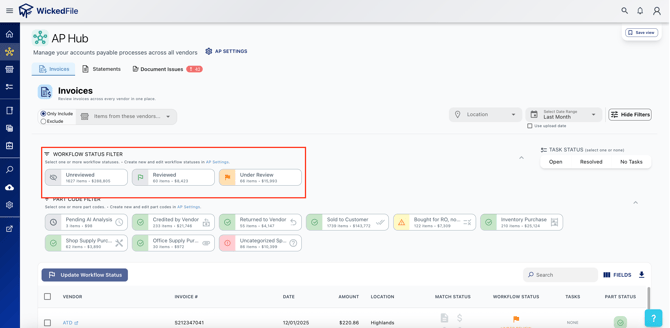
By default, invoices and statements include:
-
Unreviewed (system default) 🆕
-
Under Review 🟧
-
Reviewed 🟢
“Unreviewed” cannot be deleted, as it is the system baseline. Other defaults can be edited or disabled.
Creating Custom Workflow Statuses
Custom workflow statuses are helpful for teams with structured review or payment processes.
Common examples:
-
Can Pay (for statements)
-
Needs Manager Review
To create one:
-
Go to System Settings → AP Settings
-
Select Workflow Statuses
-
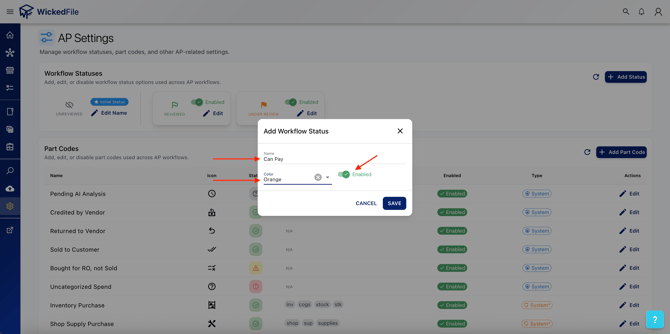
Click Add Status
-
Assign a name and color
-
Save