
🔹 How It Works
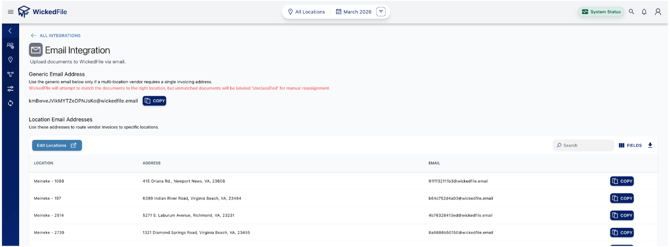
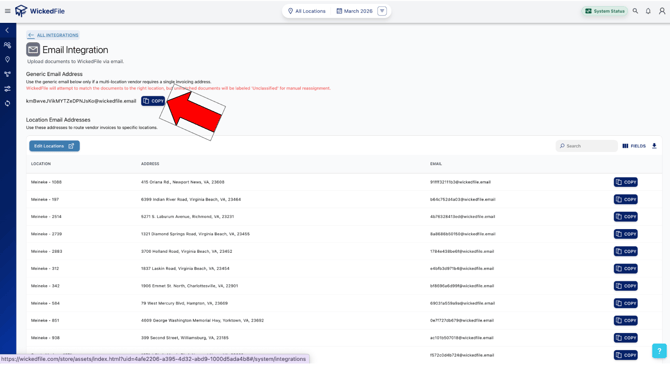
Every WickedFile location has its own unique email address for uploads.
When a document is sent to that address, WickedFile automatically imports and classifies it to the right location.
You’ll also have a Generic Email Address that can be used for vendors serving multiple locations. WickedFile will attempt to route these uploads automatically, and if it can’t, the document will appear in your Unclassified folder for manual review.
🏢 Ways to Send Documents
1. Have Vendors Email Documents Directly
Share your location-specific WickedFile email address with vendors so they can email documents straight into your account.
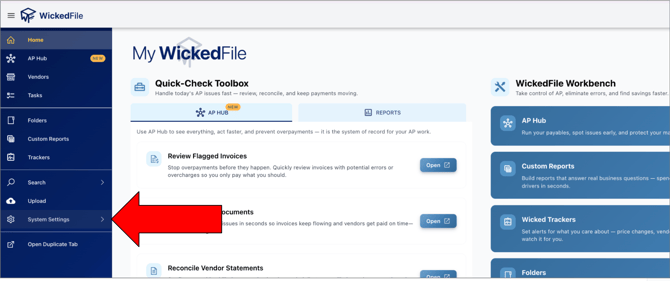
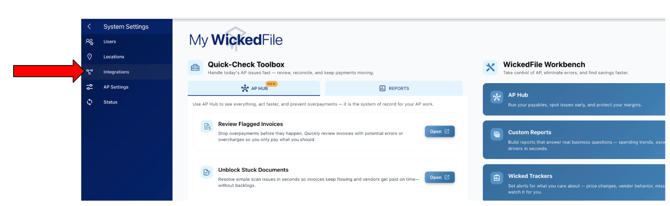
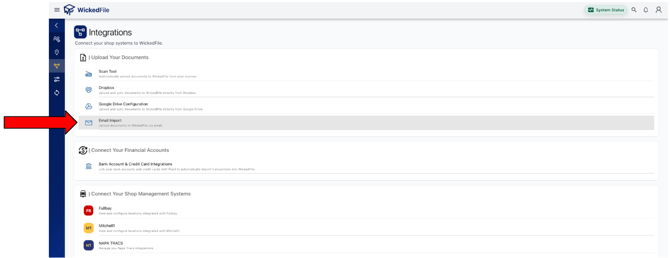
Each location’s address is found under:
System Settings → Integrations → Email Import.
1.
2.
3.
4.
💡 Tip: Always use the location-specific address for best results.
If a vendor serves multiple locations and can only use one email address, provide your Generic Email Address instead.
📨 Generic Email Address
Use this only if a multi-location vendor requires a single invoicing address.
WickedFile will attempt to match the documents to the correct location, but any that can’t be matched will be labeled “Unclassified” for manual reassignment.
2. Forward Documents Yourself
If vendors send invoices or statements to your inbox, you can auto-forward those emails (with attachments) to your WickedFile location email address.
This is perfect for handling multiple vendor attachments at once.
3. Scan-to-Email
If your shop scanner supports email, configure it to send scanned documents directly to your WickedFile location address.
This is ideal for:
- Paper vendor invoices
- Credit memos
- Statements
📄 File Requirements
To ensure fast and accurate processing, please follow these file guidelines:
- 📄 PDF Format Required: Only PDF files are accepted. Other file types (JPEG, PNG, DOCX, etc.) will not process.
- 📏 Size Limit: Each email (including all attachments) must be under 20 MB.
(If your files exceed 20 MB, split them into smaller batches before sending.)
⚙️ Best Practices
- Use location-specific addresses whenever possible.
- Forward or upload only relevant vendor documents — invoices, credit memos, statements, and RMAs.
- Skip customer invoices or handwritten notes — WickedFile can’t process those.
💬 Need Help?
Not sure which email to use or how to set up scan-to-email?Just Ask Bob! — your built-in WickedFile AI assistant — for help with setup, troubleshooting, and best practices.