
Key Features
|
Feature |
Description |
|
One-Time Upload |
Manually upload documents from Google Drive into WickedFile. |
|
Recurring Sync |
Automatically sync files from selected Google Drive folders (Temporarily Unavailable) |
|
Supported File Types |
PDFs, JPEGs, PNGs, BMPs, and TIFFs. |
|
Shop Assignment |
Uploaded or synced documents can be tagged and assigned to a shop location. |
|
Subfolder Control |
Users can choose whether subfolders should be included in a recurring sync. |
Accessing the Integration
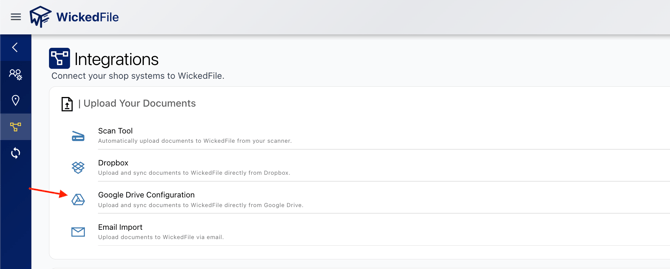
- Navigate to System Settings and then Integrations in WickedFile.
- Select Google Drive Integration from the list.
- Log in using your Google account to authorize the connection.
One-Time File Upload
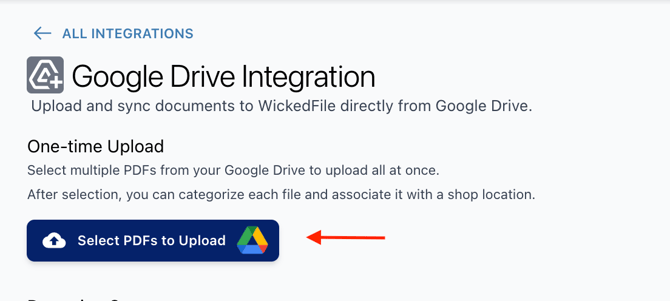
Use this option when uploading documents manually.
Steps:
- Click Select PDFs to Upload.
- Choose one or more PDF files from your Google Drive.
- Assign each file to a shop location and optional category.
- Confirm and save.
Security & Compliance
- This integration uses the Google Drive API for secure file transfer.
- WickedFile does not store Google login credentials; authentication is securely handled by Google.
- WickedFile’s Google Drive integration is not endorsed by Google and follows the Google API Terms of Service and trademark policies.
Troubleshooting
|
Issue |
Solution |
|
Can’t enable Recurring Sync |
This is temporarily unavailable. |
|
Files not appearing in WickedFile |
Verify file type, correct folder selection, and that sync is active. |
|
Sync stopped working |
Reconnect your Google Drive from the Integrations settings. |
|
Files assigned incorrectly |
Edit file details in WickedFile or adjust sync folder shop settings. |
Need Help?
For assistance with setup, permissions, or troubleshooting, reach out to WickedFile Support or your account administrator.