
SECTION 1 — What the AP Hub Is
WickedFile’s AP Hub is your daily workspace for reviewing, coding, and approving vendor invoices so you can ensure they are ready for payment. It gives an invoice-first view so you don’t wait for statements to start AP work.
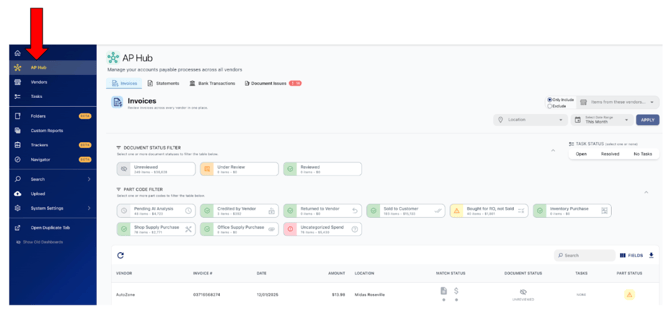
SECTION 2 — What You Do Every Day
Invoice Code Colors: What They Mean
|
Color |
Meaning |
Action Required |
|
🟢 Green |
All parts accounted for |
No action |
|
🟡Yellow |
Bought for RO but not sold |
Review/recode/task-out |
|
🔴 Red |
Uncategorized spend (PO issue) |
Review/recode/task-out |
|
⚪ Grey |
Pending AI analysis |
None (Auto-updates nightly) |
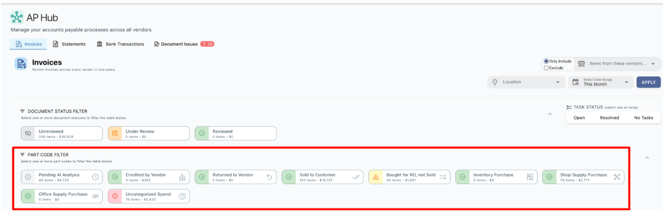
DAILY WORKFLOW (3 STEPS)
1️⃣ Process Invoices (Open red + yellow coded invoices)
Why: So you can focus on exceptions
2️⃣ Use Workflow Status (Optionally)
Why: So you never use your place
3️⃣ Adjust coding for parts
Why: So you can ensure everything is accurate and accounted for
4️⃣ Assign tasks when you need help
Why: If you can’t recode or are unsure, ask the appropriate team member (creates accountability)
Your goal:
✔ Every invoice is coded accurately
✔ No uncategorized or unsold items before paying off vendor
✔ Clean month-end
SECTION 3 — How to Work Each Invoice
1. Open invoice
Check vendor, date, RO numbers, line items.
2. Fix coding
Examples:
-
Wrong RO number (but sold)? → change code to Sold to Customer
-
Inventoried? → change code to Inventory Purchase
-
Was sold on the RO, but matching issue? → recode to Sold to Customer
-
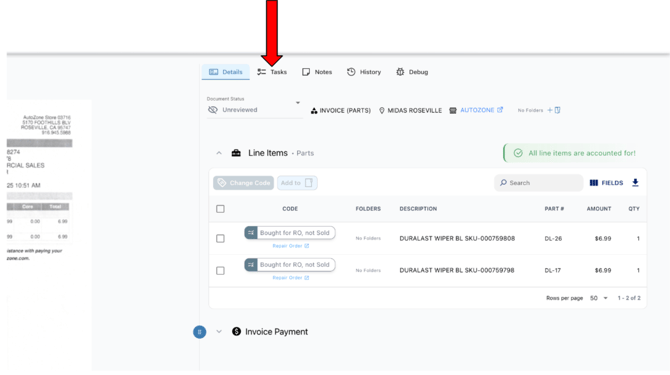
Unsure? → Create a task using the Tasks tab and assign to the appropriate user
Important: Your goal is to code the money, not “force matches.”
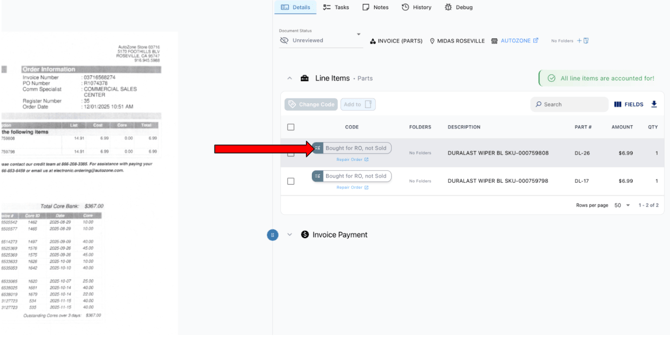
Click on code to recode parts
3. Update workflow status (optional)
If you’d like to not lose your spot and “mark” to yourself that you were working this invoice, change the Workflow Status from “Unreviewed” to “Under Review” or “Reviewed”.
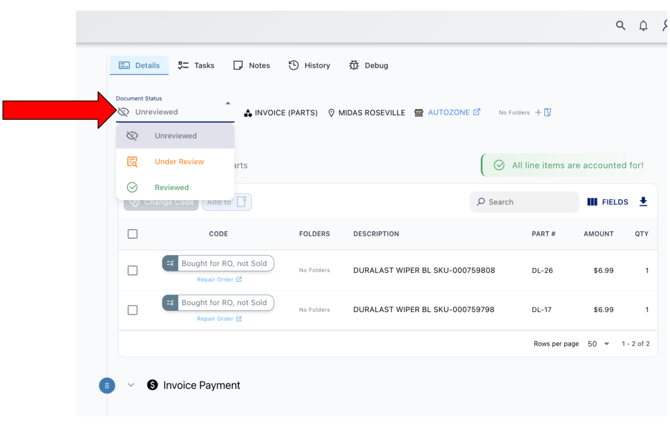
4. Assign tasks if needed
Ask a manager, service advisor, or other team member for clarification. This will send them an email with your message, and they can respond in the Task thread within WickedFile.
SECTION 4 — The Four Tabs of the AP Hub
You mainly work in Invoices, but here's what each tab is:
-
Invoices (Primary Workspace)
-
-
Code invoices
-
Handle exceptions
-
Recode
-
Assign tasks
-
-
-
Shows missing invoices/credits
-
Alternate view to invoice-first workflow
-
-
-
Confirm COGS invoices were uploaded
-
-
-
Scans with AI extraction issues
- Fix to ensure all invoices are reconciled
-
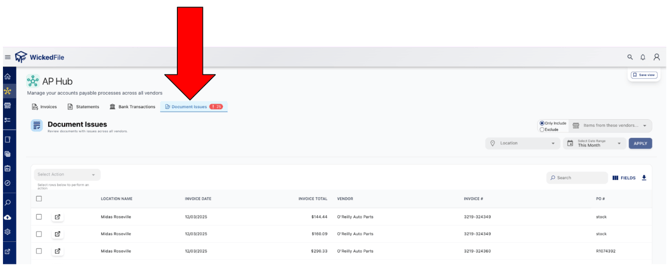
Triaging Document Issue Examples
SECTION 5 — What Shop Staff Should Not Do
Shop-level users should:
✔ Upload documents
✔ Respond to tasks
They should NOT:
✖ Code invoices
✖ Work exceptions
✖ Handle AP Hub
SECTION 6 — Best Practices (Quick List)
-
Upload every part invoice, credit, and statement daily
-
Use correct PO conventions (RO# = PO#; STOCK/INV for inventory; SHOP for supplies)
-
Avoid uploading official vendor documents
-
Code daily → reconcile monthly
SECTION 7 — One-Page Daily Checklist
✔ Daily
-
Filter to Yellow + Red
-
Fix coding
-
Assign tasks
-
Mark invoices Reviewed
✔ Weekly
-
Work “Document Issues” if needed
-
Check for Missing Invoices (and upload)
✔ Monthly
-
Confirm vendor totals
-
Final “Okay to Pay” decisions