
Step 1: Please login to your WickedFile account
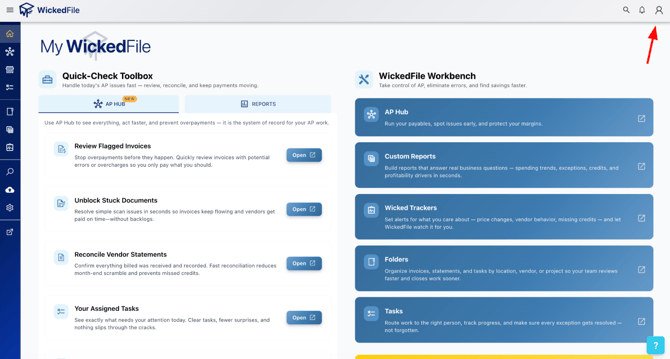
Step 2: Once on the home screen, click the person icon in the top-right corner, then click “Account.”
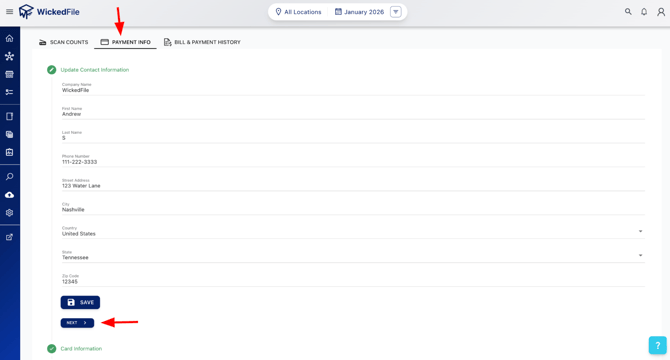
Step 3: Near the top, click the tab labeled “Payment Info” and make sure all information is entered correctly. Click “Save,” then click “Next” at the bottom of the page.
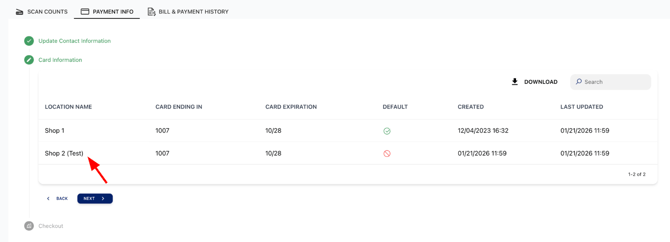
Step 4: The image below shows two active shop locations on this account, both billed to the same default credit card. To update the credit card for a specific location, select the shop you’d like to change.
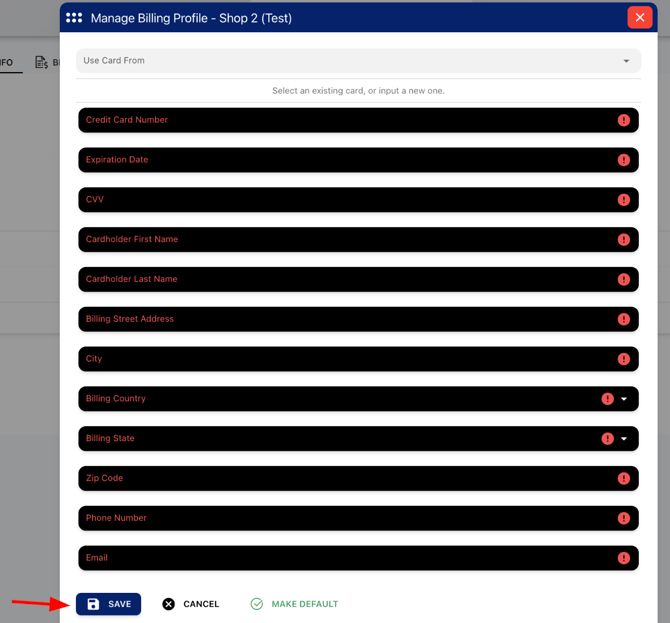
Step 5: A new screen will pop up, as shown in the image below. To add a new credit card to your billing account, please enter all the required credit card information in the fields highlighted in black, marked with red exclamation points on the right side. Ensure that all information is entered correctly, then click the "Save" button at the bottom of the screen.
Once you clicked the save button, you will now see that your specific shop location you chose is being billed to a new credit card. Please repeat this exact process for each shop location you want billed to a unique credit card.
If you need further assistance, please do not hesitate to reach out to customer support.