
This is not a pricing setup tool like your SMS. It is a way to audit what actually happened after the fact.
Where to Find It
-
Go to Custom Reports
-
Click on "New Report"
-
Select Parts
-
Click on the Part Matrix (Advanced) drop-down
-
Configure your matrix settings
-
Run the report
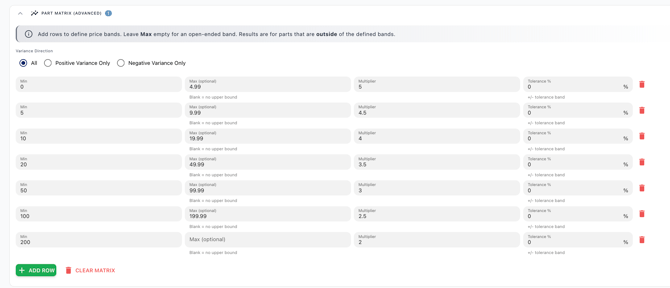
What You Configure
When building a Part Matrix, you define:
-
A cost range (ex: $0–$4.99)
-
A target multiplier (ex: 5x)
-
A tolerance
-
Whether you want to see:
-
All variances
-
Positive only
-
Negative only
-
The report then shows only exceptions.
What “Tolerance” Means
Tolerance controls how extreme the exception must be before it shows up.
-
Low tolerance → shows more parts (smaller deviations)
-
High tolerance → shows fewer parts (only big outliers)
Example:
If your target multiplier is 3x and you set a high tolerance (like 80%) and choose Positive Variance Only, you will only see parts that were marked up way higher than 3x — the extreme overcharges.
You will not see small differences like 3.2x or 4x.
Think of tolerance as: “Only show me the big stuff.”
Variance Options Explained
You can choose what type of exceptions to see:
Positive Variance Only
Shows parts sold higher than your target markup.
Operational meaning:
Extra margin
Potential pricing inconsistency
- Possible customer experience issue
Negative Variance Only
Shows parts sold lower than your target markup.
Operational meaning:
Margin leakage
Discounting
Missed markup
All Variances
Shows both over and under.
Best Way to Use It
Start simple:
Pick one cost band.
Set your expected multiplier.
Start with low tolerance.
Review results.
Increase tolerance if you only want the extreme outliers.
Use it to identify patterns — not to micromanage individual parts.
Important: This Is an Audit Tool
The Part Matrix does not control pricing.
It does not replace Tekmetric or other SMS pricing rules.
It simply audits what actually happened and lets you:
Spot pricing discipline issues
Identify outliers
Evaluate margin behavior by cost band
This de-conflicts it from SMS tools — they set pricing rules.
WickedFile audits outcomes.