
This feature is particularly useful for vendors that do not impact COGS (Cost of Goods Sold) or statement reconciliation, such as utilities, rent, software subscriptions, or one-time miscellaneous payments.
What Happens When You Ignore a Vendor
When you select Ignore Vendor, WickedFile will:
- Remove the vendor from both the Verified and Unverified vendor lists.
- Exclude any associated invoices, credits, return slips, and parts from reconciliation.
- Prevent future uploads or bank transactions from automatically linking to this vendor.
⚠️ Important: Ignoring a vendor is a permanent action. Once ignored, the vendor and its related data will no longer appear in reconciliation views or statement tracking.
When to Ignore a Vendor
You should ignore a vendor when:
- The vendor is not part of your operational or COGS workflow.
- The vendor is related to overhead expenses such as:
- Utilities (e.g., electricity, internet, phone)
- Rent or leases
- Office supplies or software
- Bank fees or financing charges
- Utilities (e.g., electricity, internet, phone)
- The vendor represents personal or non-business transactions that were uploaded or imported by mistake.
How to Ignore a Vendor
- Navigate to the Vendor section.
- Select the vendor you wish to ignore (from either Verified or Unverified lists).
- Click Edit Configuration.
- Choose Ignore Vendor.
- Confirm your choice when prompted.
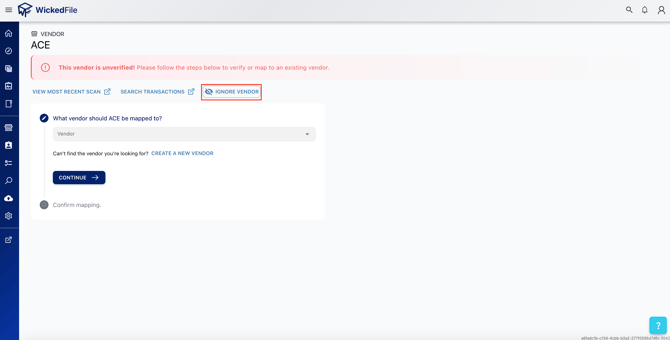
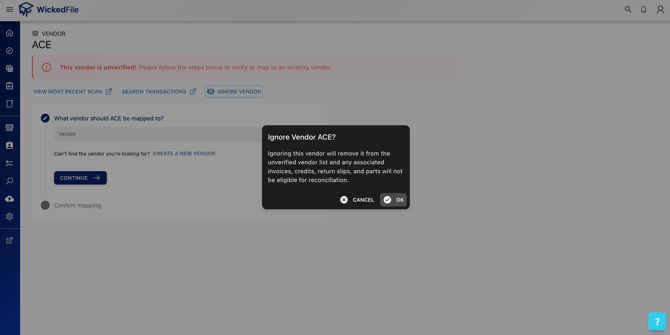
Once confirmed, WickedFile will remove the vendor from your active lists and exclude its data from reconciliation and reporting.
Reversing an Ignored Vendor
If you ignored a vendor by mistake:
- Navigate to your Ignored Vendors list.
- Select the vendor you want to restore.
- Choose Unignore Vendor.
- Reconfigure the vendor as needed using the Vendor Configuration Guide.
Best Practices
✅ Review unverified vendors before ignoring them to avoid excluding active business vendors.✅ Ignore only vendors unrelated to your COGS or parts workflows.
✅ Keep track of ignored vendors for auditing or bookkeeping consistency.
✅ Use merge and verify options first before choosing to ignore a vendor.