
💳 Payment Info Overview
This section displays details about the credit or debit cards linked to your WickedFile account. You’ll see one entry per location, along with information about each card’s status and expiration.
Key Fields:
- Location Name – Identifies which business or branch the payment method belongs to.
- Card Ending In – The last four digits of the stored payment card.
- Card Expiration – Indicates the card’s expiry month and year.
- Default – Shows which card is set as the default payment method.
- A green checkmark (✓) means it’s the active default card for all locations.
- A red icon (🚫) means the card is not currently the default.
- A green checkmark (✓) means it’s the active default card for all locations.
- Created / Last Updated – Displays when the card was first added and when it was last modified.
⚙️ Managing Payment Methods
Available Actions:
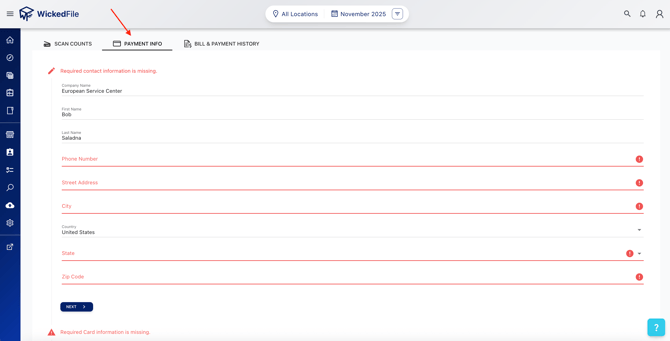
- ✅ Update Contact Information – Edit billing contact details like name, phone number, or email address.
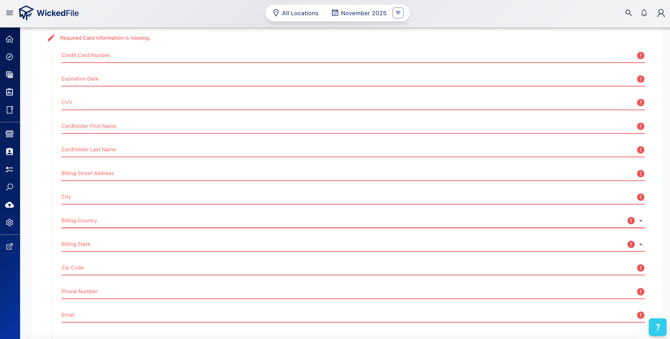
- 💳 Card Information – Add, edit, or remove payment methods for specific locations.
- 🌐 Set Default Card – Designate one card as the default payment method for all locations.
- ⬇️ Download – Export payment information for internal reporting or accounting.
💡 Tip: If your business operates multiple locations, setting a default payment method helps simplify billing and ensure consistent payment processing.
🧠 FAQs
Q: Can each location use a different card?
A: Yes. Each location can have its own card, or you can choose one default card for all.
Q: How do I set a default payment method?
A: In the Card Information section, select the desired card and mark it as default. The green checkmark confirms it’s active.
A: Yes. Use the Download option in the top-right corner to export your payment data.