
🎯 Why Use Tasks
✅ Streamline Collaboration
Assign follow-ups or reviews to the right team member instantly.
👀 Ensure Accountability
Each Task has a clear owner, priority level, and status.
📅 Stay Organized
See everything assigned to you, what you’ve assigned out, and what’s complete — all from one screen.
📬 Get Instant Notifications
Recipients are notified right away, so nothing slips through the cracks.
🧩 How to Create a Task
- 1. Locate the Item
From any Scan, Repair Order, or related record, open the item that needs follow-up.
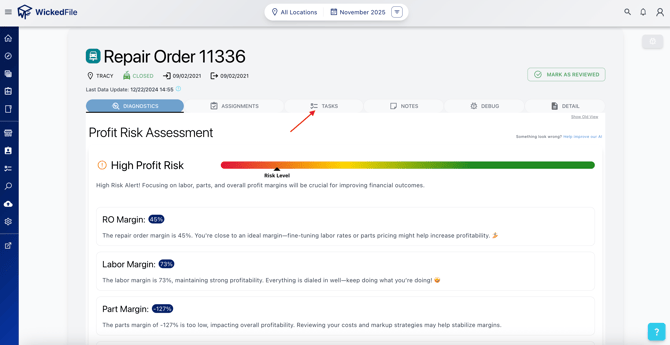
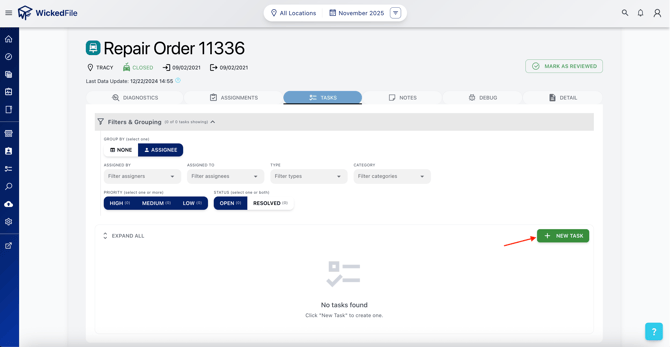
- 2. Click “New Task”
Use the green + New Task button (top-right) or the Task option in the item’s menu.
- 3. Assign and Add Details
- Choose who you want to assign the task to.
- Add a clear title and a short description (include context like vendor, RO number, or reason).
- Select a Priority (High, Medium, or Low).
- Choose who you want to assign the task to.
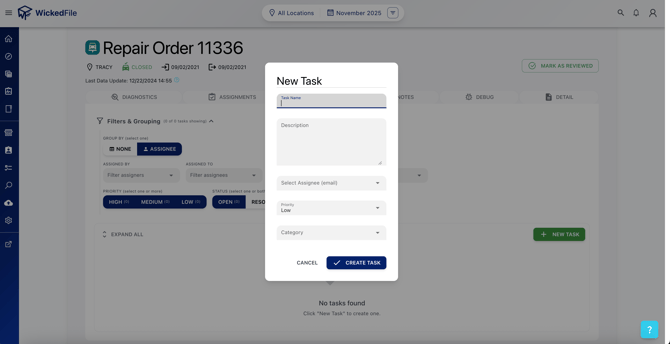
- 4. Create Task
The user will receive an email notification, and the Task will appear in both your and their Task views.
📋 Managing and Viewing Tasks
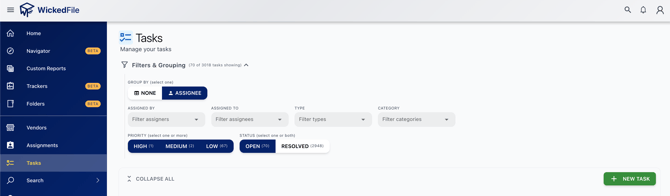
The Tasks Dashboard is your hub for tracking open and completed work.
You can filter, group, and search across all Tasks using the toolbar at the top.
🔎 Filters & Grouping
- Group By: None, Assignee, or Assigner.
- Filter by: Assigned By, Assigned To, Type, or Category.
- Priority: High, Medium, or Low.
- Status: Open or Resolved.
📂 Task Details
Each Task row displays:
- Status (Open / Resolved)
- Priority
- Task Title & Description
- Category (e.g., Parts, Accounting, Other)
- Type (e.g., Repair Order, Scan)
- Assigned By / Assigned To
- Days Open, Last Activity, and Created Date
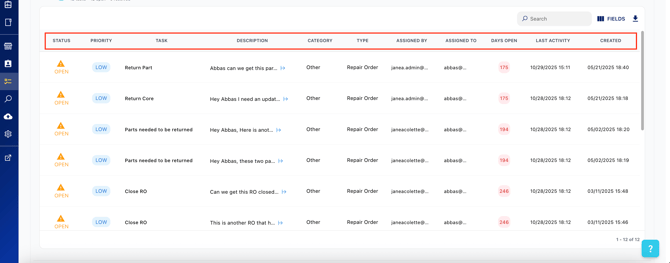
You can expand grouped users to view all their active Tasks — ideal for quickly seeing who’s handling what.
🧠 Best Practices
- Use concise, action-driven task names (e.g., “Return core to Napa,” “Close RO #1842”).
- Include short, specific notes for context.
- Regularly check your Assigned to Me tab to stay ahead of open work.
- Close or reassign Tasks as workflows progress.