
📍 Step 1: Navigate to the Integration Settings
Depending on your setup, use one of the following paths:
Single-Shop Accounts
- Go to System Settings.
- Select Integrations.
- Under Shop Management System, select Mitchell1.
MSO Accounts or When Adding a New Location
- Go to System Settings.
- Click Locations.
- Select the location you want to integrate.
- Open the Integrations tab.
- Choose Mitchell1 from the Shop Management System dropdown.
💻 Step 2: Install the Mitchell1 Sync Tool
You must complete these steps on the same computer that runs the Mitchell1 database server.
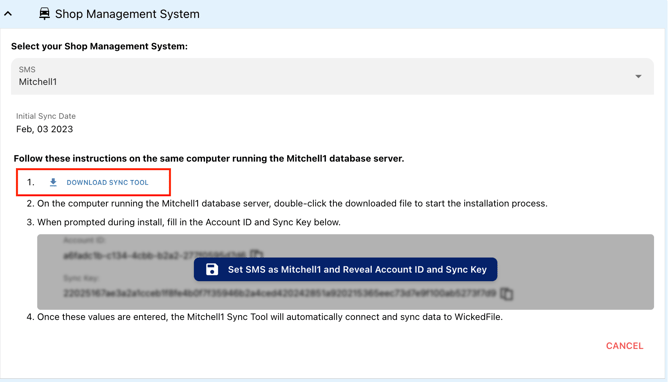
- Click Download Sync Tool.
- Open the downloaded file on the Mitchell1 database server to begin the installer.
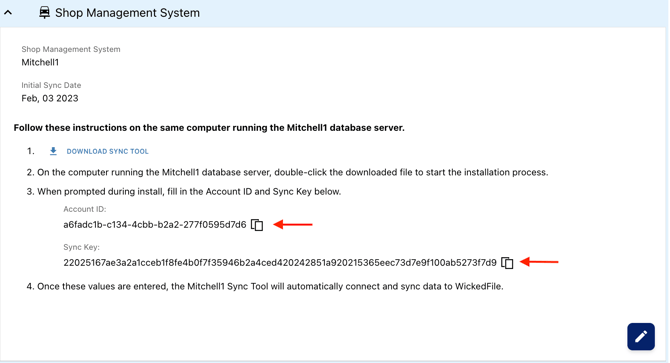
- When prompted during installation, enter the Account ID and Sync Key.
- In WickedFile, click Set SMS as Mitchell1 and Reveal Account ID and Sync Key to display the credentials.
- Copy and paste the credentials into the installer.
✅ Step 3: Complete the Integration
After entering the Account ID and Sync Key:
- The sync tool will automatically connect to WickedFile.
- Repair orders, vehicle data, and customer information will begin syncing.
📌 Best Practices
- Install the sync tool on the Mitchell1 database server, not on a secondary workstation.
- Ensure the server remains powered on, connected to the internet, and not in sleep mode.
- If you move servers or reinstall, return to this page to generate new credentials.
- For best uploading practices, follow this guide: [Link to be inserted here].
❓ Need Help?
If you experience issues:
- Confirm you're using the correct Account ID and Sync Key.
- Check that the sync tool is running on the Mitchell1 database server.
- Contact our support team for additional assistance.