
📍 Step 1: Navigate to Integration Settings
Depending on your account setup, use one of the following methods:
Single Location
- Go to System Settings.
- Click Integrations.
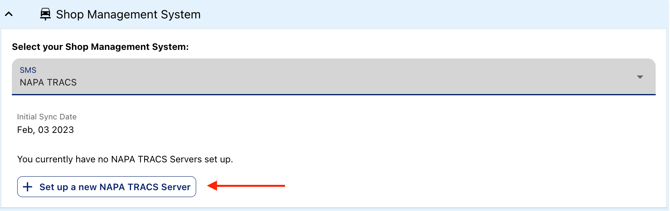
- Under Shop Management System, select NAPA TRACS.
MSO or Adding a New Location
- Go to System Settings.
- Select Locations.
- Choose the location you want to integrate.
- Click the Integrations tab.
- Select NAPA TRACS as your Shop Management System.
💻 Step 2: Install the WickedFile Sync Tool
These steps must be completed on the computer running the NAPA TRACS server.
- In WickedFile, click Set up a new NAPA TRACS Server. Then click Download Sync Tool
- Open the downloaded file and follow the prompts to install the sync tool.
- Once installed, on the login screen of the Sync Tool, click Get Shop IDs.
- This will generate the NAPA TRACS Shop ID(s) for each location.
- Save these IDs for a later step.
- This will generate the NAPA TRACS Shop ID(s) for each location.
🖥 Step 3: Add and Name the Server in WickedFile
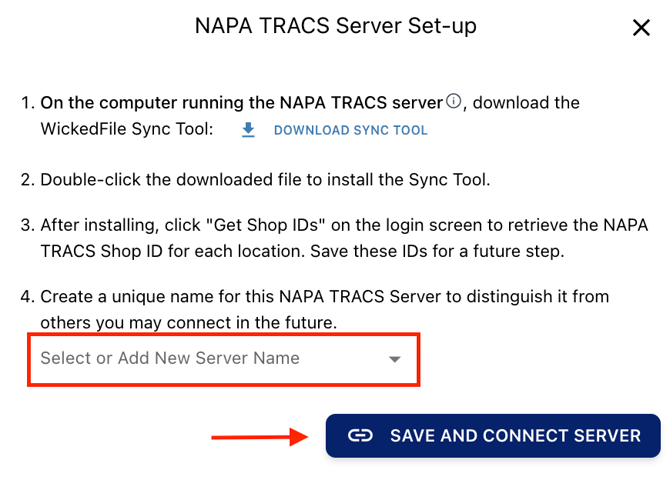
- Return to WickedFile and open the NAPA TRACS setup window.
- Enter a unique name for this NAPA TRACS server (e.g., “Main Shop Server” or “East Location Server”).
- This helps distinguish it if multiple servers are added in the future.
- This helps distinguish it if multiple servers are added in the future.
- Click Add New Server Name.
- Paste the Shop ID(s) collected from the Sync Tool when prompted.
- Click Save and Connect Server to complete the setup.
✅ After Setup
Once connected:
- The Sync Tool will automatically share data from NAPA TRACS into WickedFile.
- Repair orders, vehicles, and customer details will begin syncing.
- You may monitor or adjust syncing directly from System Settings > Integrations.
📌 Best Practices
- Install the Sync Tool only on the NAPA TRACS database server, not a workstation.
- Make sure the server stays powered on and connected to the internet.
- If you add more locations in the future, repeat this process to connect additional Shop IDs.
- For optimal upload performance, follow our Best File Uploading Practices Guide (link to be added).
❓ Need Assistance?
If you run into issues:
- Confirm the correct Shop ID is entered.
- Ensure the Sync Tool is installed on the NAPA TRACS server machine.
- Reach out to our support team for further help.