
💡 Why Use Folders
- Organize by Workflow or Use Case – Group items like invoices, transactions, or documents by category, vendor, or issue type.
- Improve Collaboration – Share folders with your team to stay aligned on active issues.
- Save Time – Quickly access all related files without needing to re-run reports or searches.
- Stay on Top of Follow-ups – Track unresolved items and monitor progress directly within WickedFile.
📁 Creating a New Folder
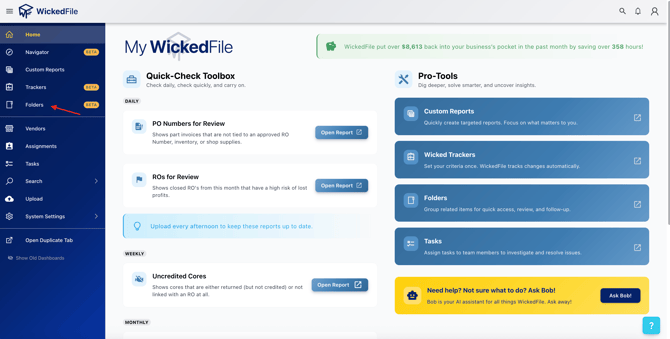
- 1. Go to Folders
In the sidebar, open Folders to view your saved collections.
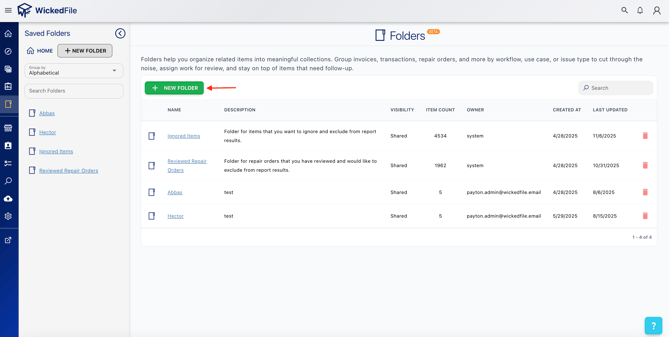
- 2. Click “New Folder”
Select the + New Folder button to open the creation window.
- 3. Enter Folder Details
- Folder Name: Give your folder a clear and descriptive title.
Example: “Napa Follow Up” or “Monthly Vendor Reviews” - Description: Add an optional summary explaining the folder’s purpose.
Example: “Tracking all uncredited invoices from Napa Auto Parts.”
- Folder Name: Give your folder a clear and descriptive title.
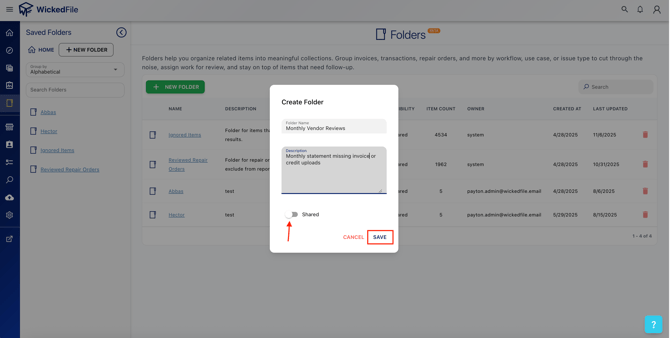
- 4. Set Sharing Options (Optional)
Toggle Shared on if you’d like others on your team to access this folder. - 5. Save Your Folder
Click Save to create your folder. You’ll now see it listed in your Folders view.
📂 Adding Items to a Folder
You can populate your folder with relevant items from:
- Custom Reports – Select the items you want to group and choose Add to Folder.
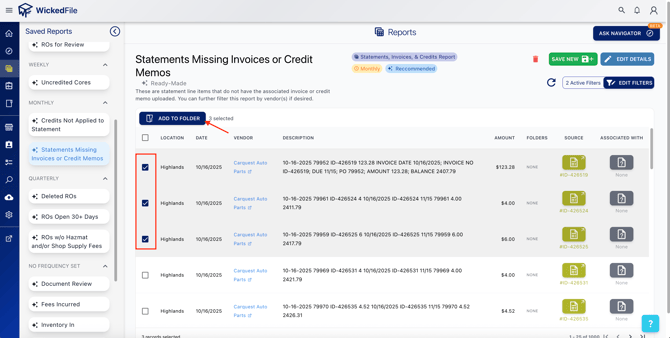
- Scanned Data or Documents – Organize uploaded files or scanned results directly into a folder.
🔍 Viewing and Managing Folders
Once a folder is created:
- You can search and sort your folders by name or last updated date.
- Open a folder to view its contents, add new items, or remove outdated ones.
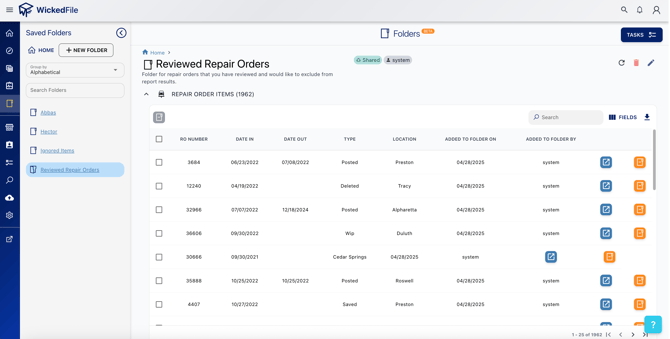
- Shared folders will show the owner and creation date for easy tracking.
🧠 Best Practices
- Use consistent naming conventions (e.g., “Vendor – Issue Type” or “Month – Review”).
- Share folders with teammates responsible for specific workflows.
- Periodically review and archive old folders to keep your workspace clean.