
When to Use Quick Search
Use Quick Search when:
- You know an invoice number, part number, or word that appears in the document.
- You need to locate one or a few exact documents.
- You want faster results without setting up filters or reports.
Use Custom Reports when:
- You’re looking for patterns or trends.
- You need filtered lists of documents based on multiple criteria.
- You want to export or analyze the data.
How to Use Quick Search
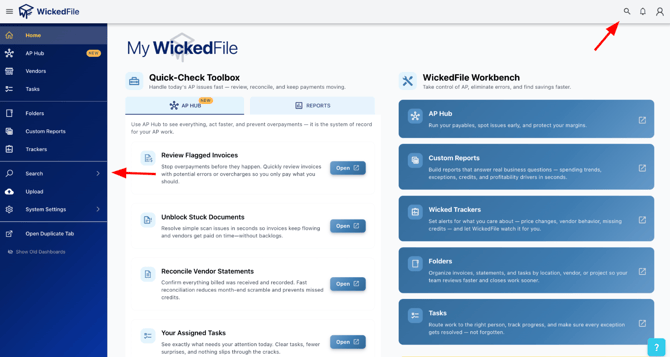
- 1. Go to Search
In the sidebar, select Search → Document Search.
- You are able to filter your search by choosing document search, transaction search, and part search
- 2. Enter Your Search Term
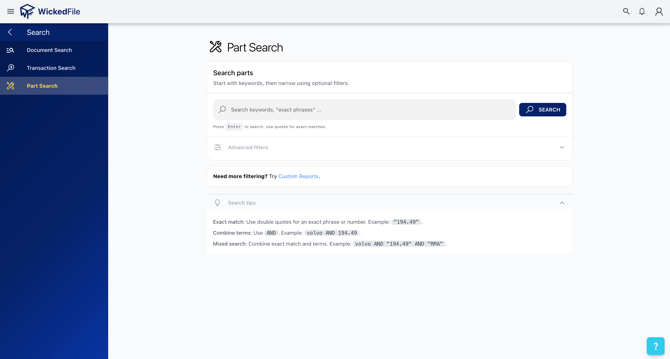
Type in an invoice number, part number, phrase, or keyword in the search bar.
- You can also use advanced search operators (see below).
- You can also use advanced search operators (see below).
- 3. Set Specific Filters (Optional)
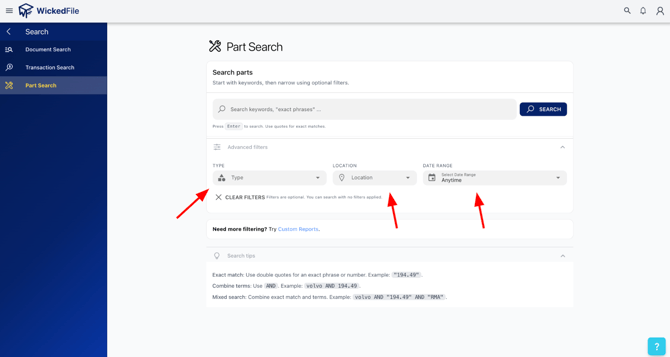
- Click “Advanced Filters” to open the filter menu. From here, you can filter results by document type, shop location, and date range.
- Click “Advanced Filters” to open the filter menu. From here, you can filter results by document type, shop location, and date range.
- 4. Click “Search”
WickedFile will instantly display matching results.
💡 Search Tips
You can use several search operators to make your search more precise:
|
Type |
How to Use |
Example |
|
Exact Match |
Use double quotes for an exact phrase or number. |
"194.49" |
|
Combine Terms |
Use AND to find documents containing multiple words. |
volvo AND 194.49 |
|
Mixed Search |
Combine exact match and keyword terms. |
volvo AND "RMA" |
|
Tag Search |
Prefix your search with tag: to search by tags. |
tag: Example |
🧠 Best Practices
- Use Quick Search when you already know what you’re looking for.
- For broader insights or batch exports, switch to Custom Reports.