
🧰 Before You Start
✅ Compatibility:
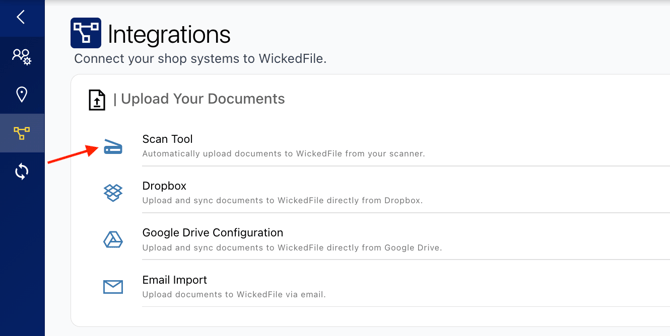
- The Scan Client is compatible with Microsoft Windows only.
- It must be installed on the same computer as your office scanner.
- Each Scan Client can be linked to one location only.
⚙️ Step 1. Create a Scan Folder
The Scan Client needs its own dedicated folder to function properly.
- Create a new folder in your C drive or desktop and name it something like: WickedFile Scans
- Add any PDF file into this folder. This file will help confirm that your Scan Client is connected properly after installation.
💾 Step 2. Download the Scan Client
- Download the Scan Client to your Windows machine.
- Wait until the download has fully completed before continuing.
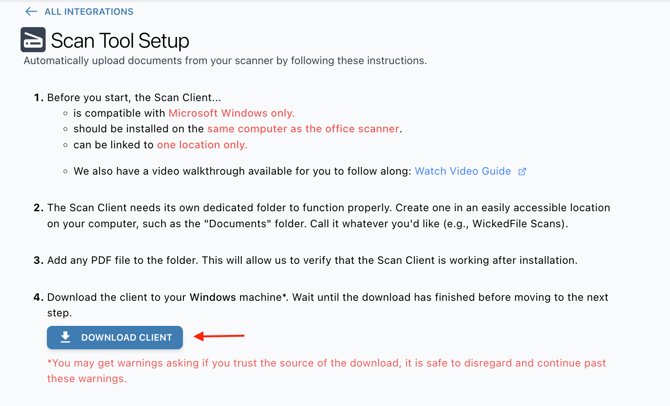
⚠️ Note: You may see a warning like “Do you trust the source of this download?” — It’s safe to continue past this warning. WickedFile is a trusted source.
🧩 Step 3. Install the Scan Client
- Open (or “Run”) the file you just downloaded.
- Follow the installation prompts.
- When installation completes, the Scan Client will open automatically.
You’ll see input fields for Account ID and Sync Key.
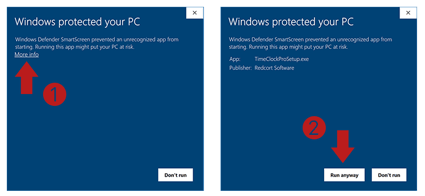
⚠️ You may see a Windows SmartScreen warning like the image below: “Run an unrecognized app?”
Click on "More Info" and then click “Run Anyway.”
🔑 Step 4. Enter Your Account Information
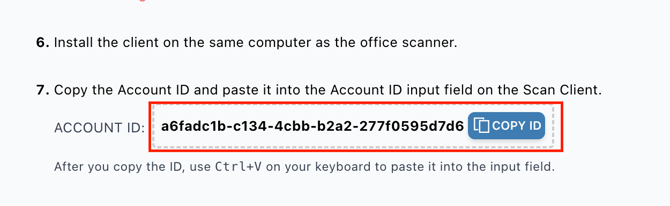
Click back to the WickedFile scan client instructions and copy the following Account ID and paste it into the Account ID field in the Scan Client.
(Example) Account ID: a6fadc1b-c134-4cbb-b2a2-277f0595d7d6
- (Use Ctrl + V to paste)
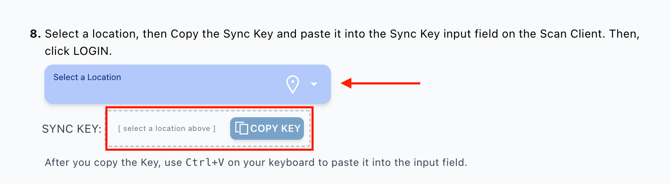
- Select your Location from the dropdown.
- Copy the Sync Key that appears, and paste it into the Sync Key field.
- Click LOGIN.
📁 Step 5. Choose Your Scan Directory
- You’ll now see a field labeled “Scan Directory.”
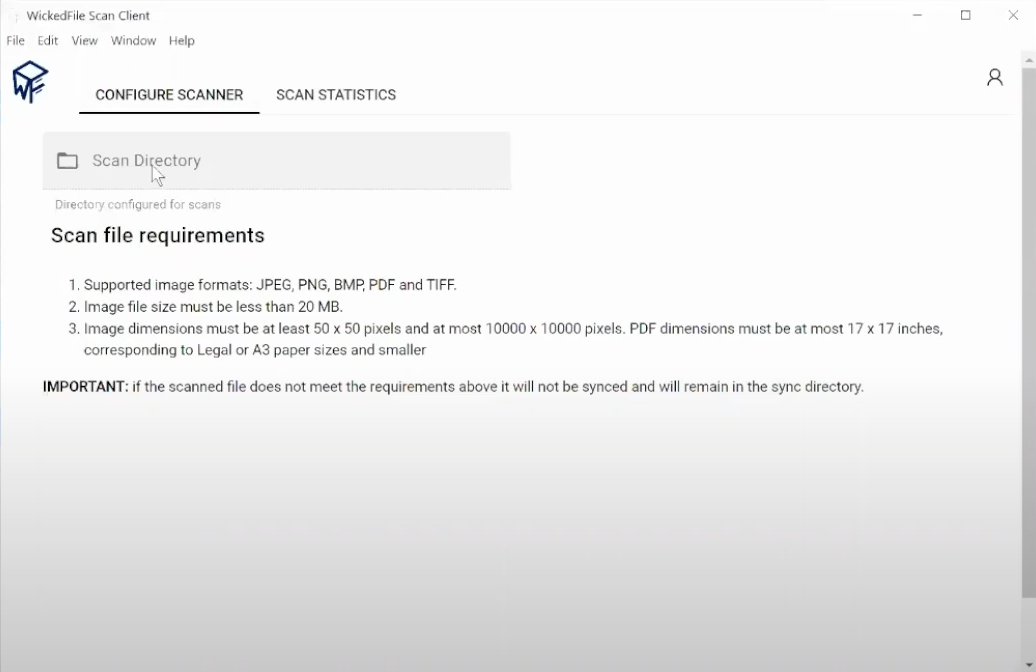
- Click inside that field and navigate to the folder you created earlier (e.g., Documents → WickedFile Scans).
- Click the folder once, then select OK or UPLOAD.
You should now see the full folder path displayed in the field.
✅ Step 6. Verify the Connection
- Wait about one minute.
- Go back to the folder you created.
If setup was successful:
- The original PDF file you added in Step 1 should be moved into a new folder called “archive.”
- Open the archive folder — you should see your test PDF inside.
🎉 Congratulations! Your Scan Client is successfully set up and syncing.
You can now start scanning and adding documents to your WickedFile Scans folder.
⚠️ Do NOT add files directly into the “archive” folder.
The Scan Client automatically manages this folder for storage and tracking.