
📍 Step 1: Access Integration Settings in WickedFile
Single Location Users
- Go to System Settings.
- Click Integrations.
- Under Shop Management System, select Shop-Ware.
MSOs or Adding a New Location
- Navigate to System Settings > Locations.
- Select the location you want to integrate.
- Open the Integrations tab.
- Choose Shop-Ware from the Shop Management System dropdown.
🔑 Step 2: Gather Required Information from Shop-Ware
You will need two items to complete the integration:
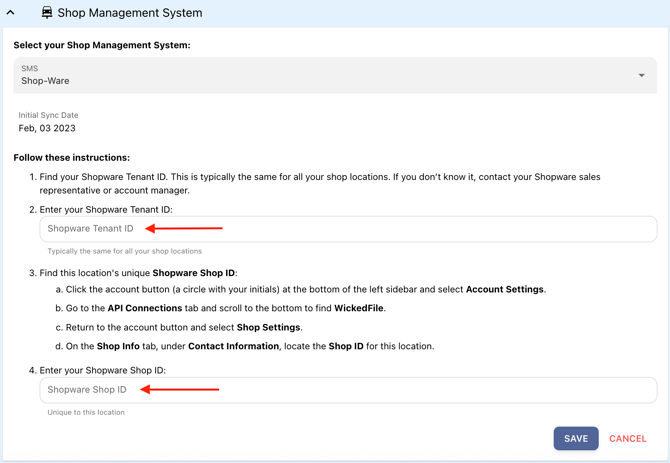
- Shop-Ware Tenant ID (shared across all locations)
- Shop-Ware Shop ID (unique per location)
How to Find Your Shop-Ware Tenant ID
This is typically the same for all locations. If you don’t know it:
- Contact your Shop-Ware sales representative or account manager.
Enter this value into the Shop-Ware Tenant ID field in WickedFile.
How to Find This Location’s Shop-Ware Shop ID
- Log in to Shop-Ware.
- Click your account icon (initials in a circle) at the bottom of the left sidebar.
- Select Account Settings.
- Go to the API Connections tab.
- Scroll to the bottom and locate WickedFile.
- Return to the account menu and select Shop Settings.
- Go to the Shop Info tab.
- Under Contact Information, locate the Shop ID for this location.
Enter this value into the Shop-Ware Shop ID field in WickedFile.
💾 Step 3: Save and Activate the Integration
- Once both fields (Tenant ID and Shop ID) are entered in WickedFile:
-
- Click Save.
- Click Save.
- WickedFile will begin syncing data from Shop-Ware for this location.
✅ After Setup
Once connected:
- Repair orders, vehicles, and customer data will sync automatically from Shop-Ware to WickedFile.
- You may repeat these steps to connect additional Shop-Ware locations.
📌 Notes & Best Practices
- Ensure the Tenant ID is accurate—this affects all locations in your account.
- Each location must have its unique Shop ID entered in WickedFile.
- Contact Shop-Ware Support if you do not have access to API credentials.
❓ Need Help?
Our Support Team is happy to assist with setup or troubleshooting at any step.