
📊 What You’ll See
To find the system status page, move your cursor over the blue menu bar on the left side of your screen. Click on system settings towards the bottom and click on status.
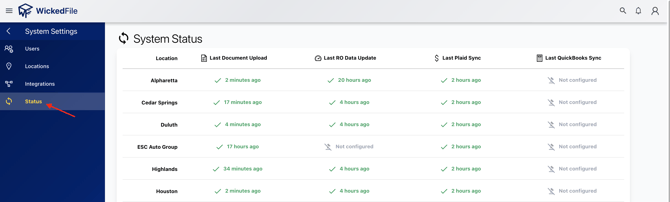
The table displays each of your locations and shows the most recent updates for the following data connections:
|
Column |
Description |
|
Location |
The name of the shop or branch. |
|
Last Document Upload |
The last time WickedFile received new documents (invoices/credits/statements). |
|
Last RO Data Update |
The last time Repair Order data was synced. If marked “Not configured,” that integration hasn’t been set up. |
|
Last Plaid Sync |
Shows the most recent financial data sync through Plaid. |
|
Last QuickBooks Sync |
Displays the last connection to QuickBooks for accounting data. “Not configured” means no active QuickBooks integration. |
🟢🟡🔴 Status Indicators
Each status cell shows how recently WickedFile synced with your systems:
|
Color |
Meaning |
|
🟢 Green |
Everything is working properly — synced recently. |
|
🟡 Yellow |
Sync happened, but it’s been a while — may need a check soon. |
|
🔴 Red |
No sync activity in a while — this should be reviewed. |
|
⚙️ Not Configured |
Integration hasn’t been set up for that data type. |
🔍 Why It Matters
The System Status page acts as your health dashboard for all WickedFile integrations. It ensures:
- You can quickly identify data gaps or syncing issues.
- Your team can troubleshoot inactive integrations before they cause reporting errors.
- You maintain full transparency into how current your data is.
💡 Tip
If you see a red “!” or “Not configured” next to a location, click into your Integrations settings to reconnect or configure that integration. Keeping all connections active ensures your data and reports are always up to date.
Need a hand? Contact WickedFile Support for help reconnecting integrations or diagnosing sync issues — we’re happy to assist!