
Incorrect or incomplete vendor configuration can cause issues such as:
- Duplicate vendor entries.
- Part invoices not having parts extracted and reconciled due to the scan type on the invoices set as "Invoice: Other"
- Inaccurate COGS reporting or categorization with transactions.
How to Configure a Vendor
While not a mandatory process, categorizing vendors can be especially useful for bank transaction vendor categorization within WickedFile and for pointing WickedFile to expect which vendor will supply only part invoices, which removes guesswork for scan type identification (Invoice: Parts vs. Invoice: Other, for example).
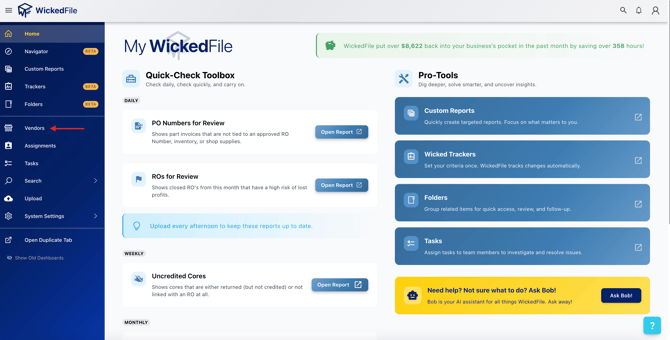
- 1. Access the Vendor Page
- Navigate to the Vendor section from the sidebar.
- Select the vendor you want to configure (e.g., Advance Auto Parts).
- Navigate to the Vendor section from the sidebar.
- 2. Open Verified Vendor List
- Click on the Verified tab

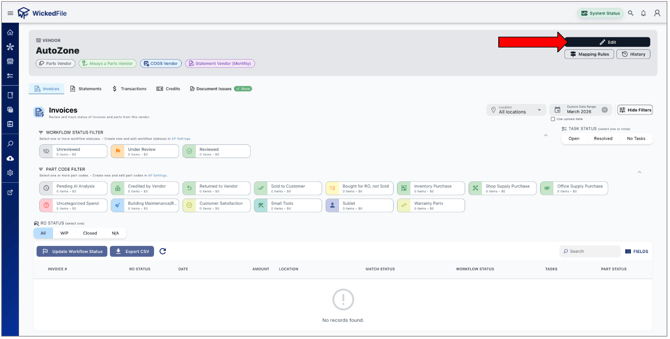
- 3. Open Vendor Edit Page
- Click on Edit to open the settings panel.
- 4. Set Vendor Type Options
- Is this a parts vendor?
Choose Always, Sometimes, or Never depending on whether this vendor regularly provides parts.- "Always" part vendors will cause invoice uploads to always come in as "Invoice: Parts", which means parts will be extracted and reconciled. Invoices will never be under the scan type "Invoice: Other", where parts are not extracted and reconciled.
- Vendors set to "Never" parts means invoices uploaded for this vendor will never be "Invoice: Parts". Parts will never be extracted or reconciled.
- Is this a COGS vendor?
Select Yes if the vendor contributes to your cost of goods sold (COGS).
- If Yes, you’ll be prompted to choose a Category such as:
- Parts
- Sublet
- Tire
- Towing
- Parts
- If No, you’ll have access to several non-COGS vendor types, such as:
- Property
- Operating Supplies
- Utilities
- Fuel
- Labor
- + More
- Property
- If Yes, you’ll be prompted to choose a Category such as:
- Is this a parts vendor?
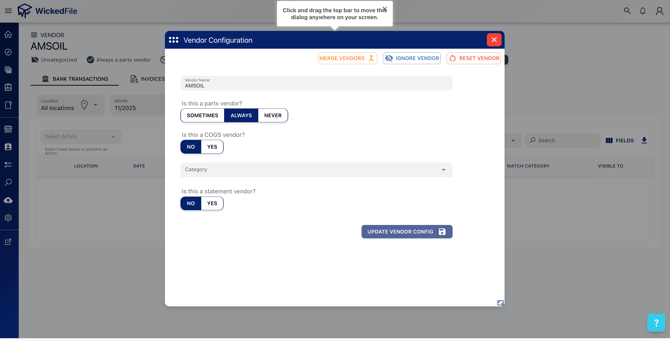
- 4. Is this a statement vendor?
Select Yes if the vendor provides monthly or periodic statements. - 5. Statement Frequency:
Choose how often statements are expected (e.g., Monthly, Weekly).
- 6. Save Changes
- Click Update Vendor Config to apply your changes.
- Click Update Vendor Config to apply your changes.
Handling Duplicate Vendors
Duplicate vendor entries can occur when documents are uploaded under slightly different vendor names (e.g., Advance Auto Parts and Advance Auto). This can cause statements or invoices to be split between two records.
To fix this:
- Open the configuration for one of the duplicate vendors.
- Click Merge Vendors.
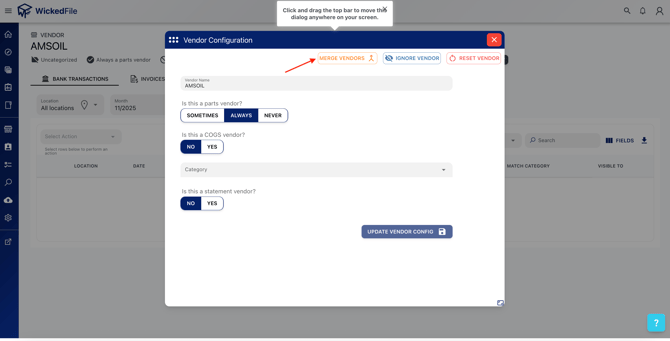
- Select the duplicate vendor to merge with.
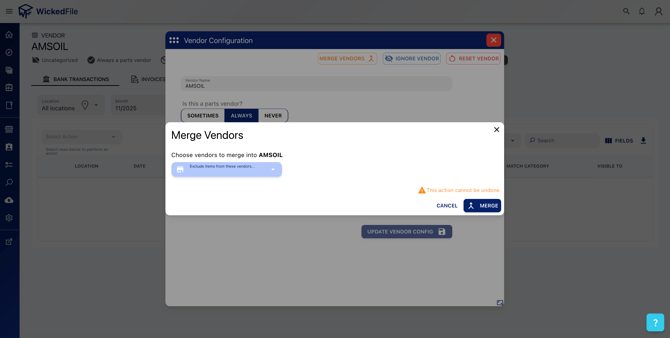
- Confirm the merge — WickedFile will combine all associated documents, transactions, and configurations into one unified vendor record.
⚠️ Tip: Regularly review your vendor list for duplicates to keep your system clean and ensure all documents are linked correctly.
Additional Options
- Ignore Vendor: Exclude a vendor from COGS or statement tracking if it’s irrelevant (e.g., utilities, subscriptions).
- Reset Vendor: Revert all vendor configuration settings to default if you need to start over.
Best Practices
✅ Review and configure new vendors as soon as they appear.
✅ Merge duplicates immediately to prevent document fragmentation.
✅ Use consistent naming conventions across your uploads and accounting systems.
✅ Verify statement frequency to ensure timely reconciliation.