
What Is a Verified Vendor?
A Verified Vendor is one that WickedFile recognizes as a valid, active vendor in your system.
This means the vendor has either:
- Been configured manually through the Vendor Configuration panel, or
- Been matched automatically to an existing, recognized vendor profile.
Once a vendor is verified, it can be fully configured using the steps described in the Vendor Configuration Guide (link to your main vendor configuration article).
Benefits of Verified Vendors
✅ Can be categorized correctly (COGS, parts, sublet, tire, towing, etc.)
✅ Eligible for automated statement matching
✅ Included in reporting and reconciliation workflows
✅ Can be merged if duplicates exist
What Is an Unverified Vendor?
An Unverified Vendor is one that WickedFile has detected from a transaction or uploaded document, but does not recognize yet.
This can happen if:
- The vendor name is new to your system
- The vendor name appears slightly different from a known one (e.g., Advance Auto vs. Advance Auto Parts)
- The document or transaction doesn’t have enough information to identify the vendor
Unverified vendors cannot yet be fully configured or included in automated matching until they’re verified.
How to Verify a Vendor
When you open an Unverified Vendor, WickedFile will prompt you to take one of the following actions:
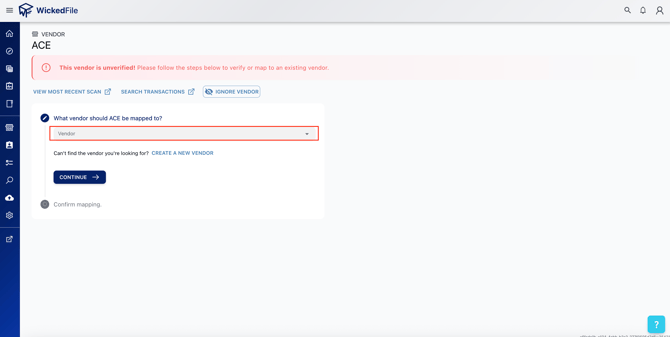
- 1. Map it to an existing verified vendor
- Use this option if the unverified vendor is a duplicate or variation of an existing one.
- Example: Advance Auto → map to Advance Auto Parts.
- This ensures all documents, statements, and transactions are linked correctly under one vendor.
- Use this option if the unverified vendor is a duplicate or variation of an existing one.
- 2. Create a new vendor
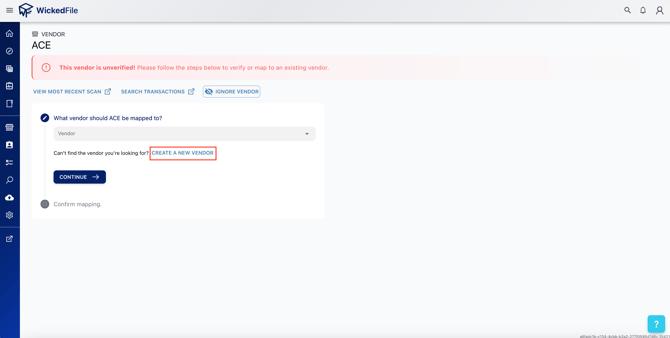
- If this is a new vendor, click create a new vendor to confirm it should be added to your system.
- Once verified, the Vendor Configuration window will open where you can:
- Clean-up vendor name
- Is it a parts vendor?
- Mark if it’s a COGS vendor or non-COGS vendor.
- If this is a new vendor, click create a new vendor to confirm it should be added to your system.
-
-
- Assign a Category (e.g., Parts, Sublet, Tire, Towing, Supplies, Utilities, etc.).
-
-
-
- Set whether it’s a Statement Vendor and define Statement Frequency.
- Set whether it’s a Statement Vendor and define Statement Frequency.
- Click confirm mapping.
-
- 3. Ignore Vendor
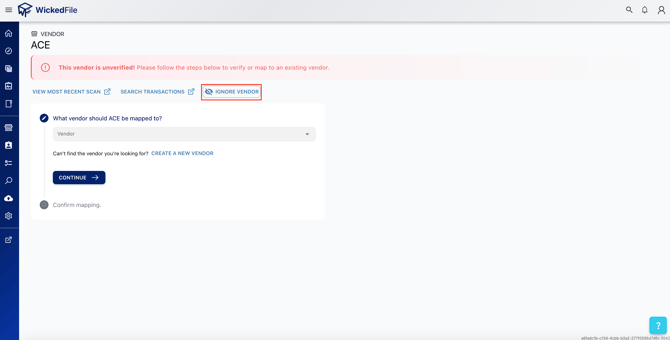
- If the vendor should not be tracked (for example, a subscription or a one-time non-business charge), select Ignore Vendor.
- WickedFile will exclude it from future COGS or statement tracking.
- If the vendor should not be tracked (for example, a subscription or a one-time non-business charge), select Ignore Vendor.
💡 Tip: Once you verify a vendor, WickedFile will automatically recognize it in future uploads and transactions.
Common Scenarios
|
Scenario |
Vendor Type |
Recommended Action |
|
Vendor appears as “Advance Auto” and “Advance Auto Parts” |
Unverified (duplicate) |
Merge vendors to unify records |
|
New vendor appears from a new towing invoice |
Unverified |
Verify and configure as COGS → Towing |
|
Recognized vendor with consistent naming |
Verified |
Continue normal processing |
Best Practices
✅ Regularly review Unverified Vendors to prevent data fragmentation.✅ Use Merge Vendors to maintain consistent naming across your system.
✅ Verify vendors as soon as they start appearing in transactions or uploads.
✅ Avoid creating unnecessary duplicates by verifying before configuring.