
Statements in WickedFile exist to confirm completeness, not to drive daily AP work. The AP Hub is invoice-first by design, meaning invoices should be worked and coded throughout the month so you are not forced into a "10-day sprint" waiting on statements.
Statements are then used as a final verification step to ensure all invoices and credits from a vendor have been captured before payment is released.
Statements provide a line-by-line cross-check between what a vendor says you owe and what has actually been uploaded, reconciled, and accounted for in WickedFile.
Where Statements Live
Statements are accessed from the Statements tab within the AP Hub. By default, this view shows statements dated in the current month, but the date range can be adjusted as needed.
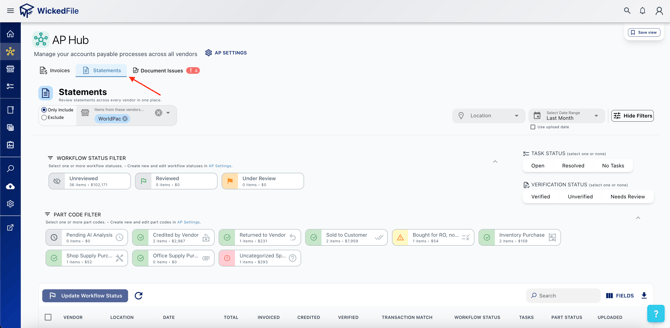
Each row represents a single vendor statement and includes key details such as:
-
Vendor
-
Location
-
Statement date
-
Workflow status
-
Part status
-
Task indicators
-
Verification status
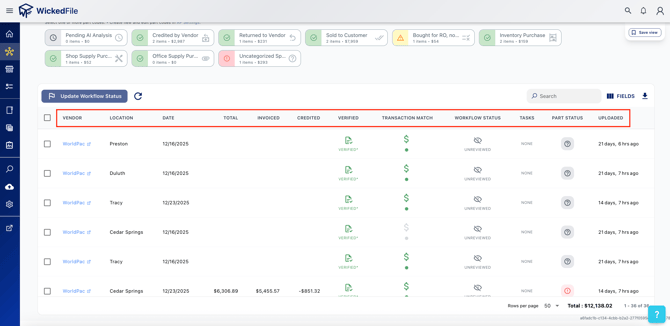
Please Note - Vendors that supply statements must be marked as "Statements Vendors" within their respective vendor configuration page (Read more here).
Statement Verification
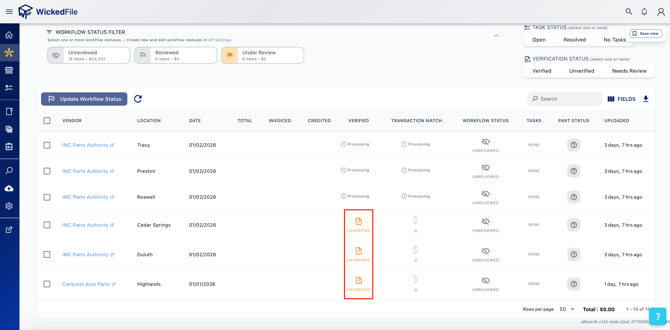
All statements enter WickedFile as Unverified. Verification is a required step for reconciliation and must be completed manually to ensure accuracy.
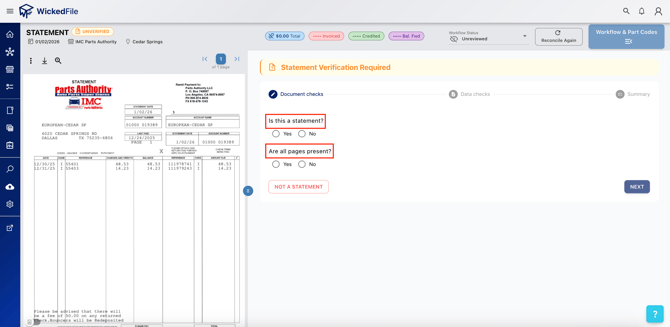
When opening a statement, the user is prompted to confirm:
-
That the document is a statement
-
That all pages are present
As well as some other key details. It is critical to paginate through the entire statement using the page navigation controls before confirming completeness. Once verified, the statement becomes eligible for reconciliation during the nightly sync.
Verification adds intention to the AP process and prevents incomplete or incorrect data messing up reconciliation results.
How Statement Reconciliation Works
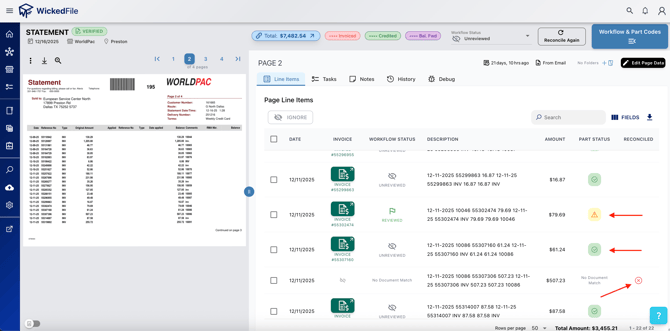
After verification, WickedFile reconciles statements line-by-line against uploaded invoices and credit memos.
For each statement line item, WickedFile checks whether a corresponding invoice or credit exists.
If a line item is reconciled, no alert is shown.
If a line item is not reconciled, it will display a red indicator (❌ ) under the "Reconciled" column.
In practice, unreconciled statement line items indicate that the invoice or credit memo was never uploaded, so the corresponding invoice needs to be found and uploaded.
Part Status Visibility on Statements
Statements inherit part status from their associated invoices. This allows users to confirm not only that an invoice exists, but that it has been properly resolved.
-
Green status ✅: All parts are accounted for
-
Yellow status ⚠️: At least one part was bought for an RO but not sold
-
Red status ❗️: At least one part is uncategorized spend
This gives a high-level view of whether a statement is clean and ready to pay at the end of the vendor's payment cycle.
Recommended Monthly Workflow
-
Work invoices daily in the Invoices tab of the AP Hub
-
Code or recode exceptions throughout the month
-
Upload statements as they arrive
-
Verify statements once all pages are confirmed
-
Review unreconciled line items to resolve any missing uploads
-
Confirm all parts on the associated invoices are accounted for
-
Release payment
Statements should be used as a final checkpoint, not as the primary driver of AP work.
Key Principles to Remember
-
WickedFile is invoice-first; statements are for validation
-
Statements do nothing until they are verified by the user
-
Unmatched statement line items mean missing uploads
-
It is best practice to ensure part statuses are in a good state before making payments
-
Clean statements indicate both completeness and accountability
Handled correctly, statements provide confidence that every dollar leaving the shop is backed by documentation and accounted for in WickedFile.